

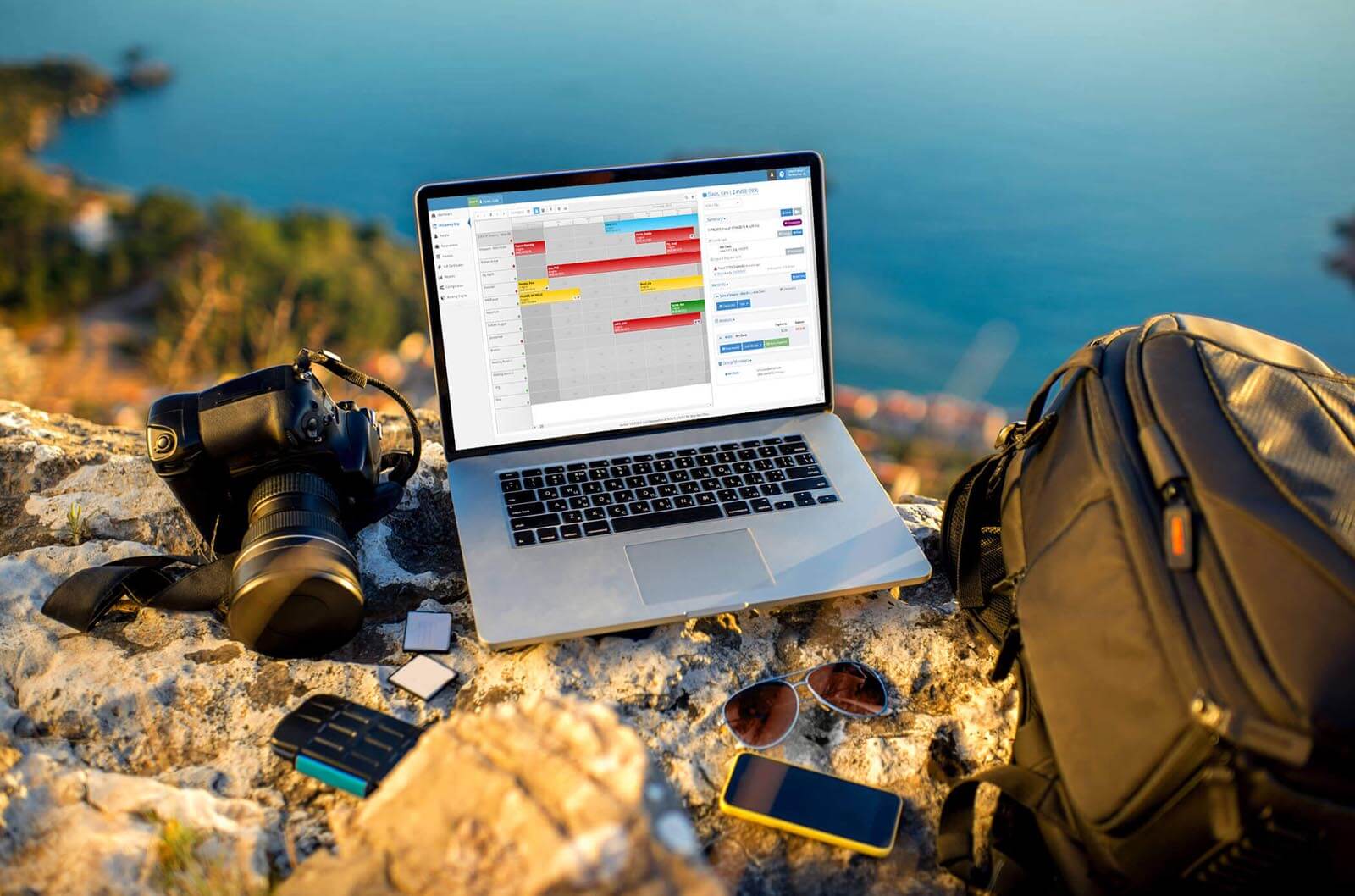
In the busy world of hospitality management, the hotel tape chart (AKA occupancy map) stands as a pivotal tool, offering a panoramic view of reservations, availability, and operations. As the heartbeat of efficient property management, it’s not just about displaying bookings; it’s about empowering your staff with dynamic features that streamline processes, optimize revenue, and enhance guest experiences. In this blog, we’ll explore 14 indispensable features your reservation software MUST HAVE to elevate your workflow from mere visualization to a strategic advantage.
1. Visual Calendar
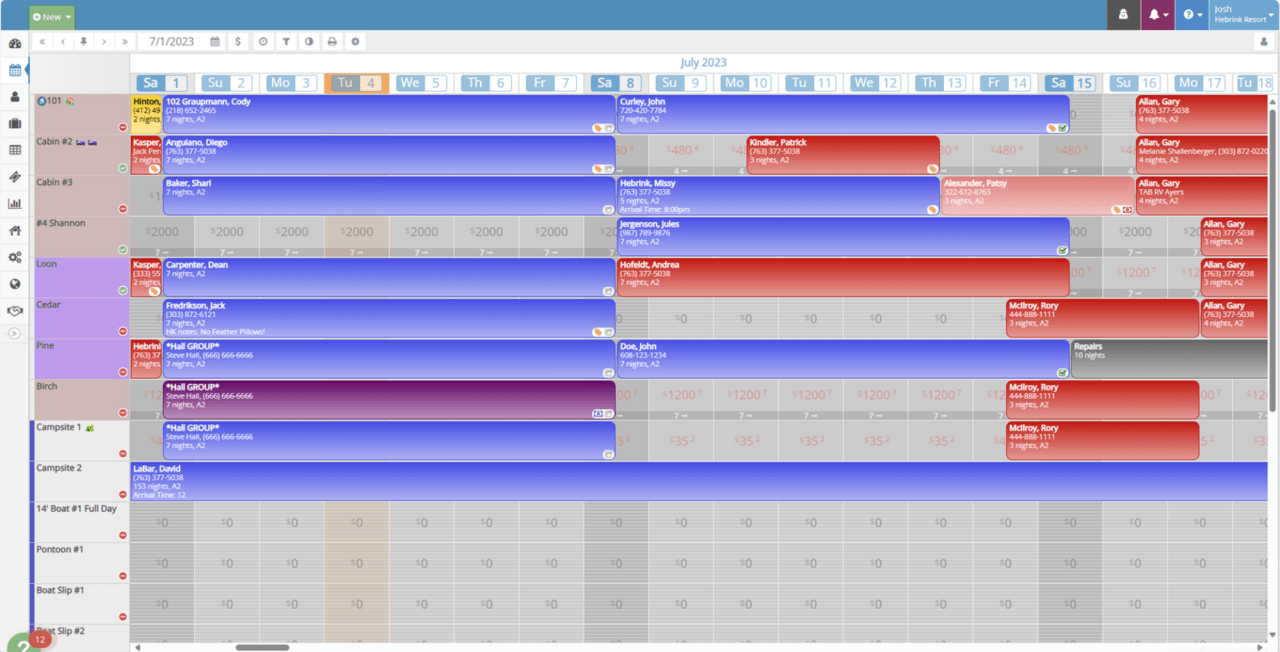
A visual calendar provides a bird’s-eye view of occupancy and availability in the tape chart. Its intuitive drag-and-drop functionality simplifies reservation management, allowing quick adjustments and more efficient operations.
2. Waitlists
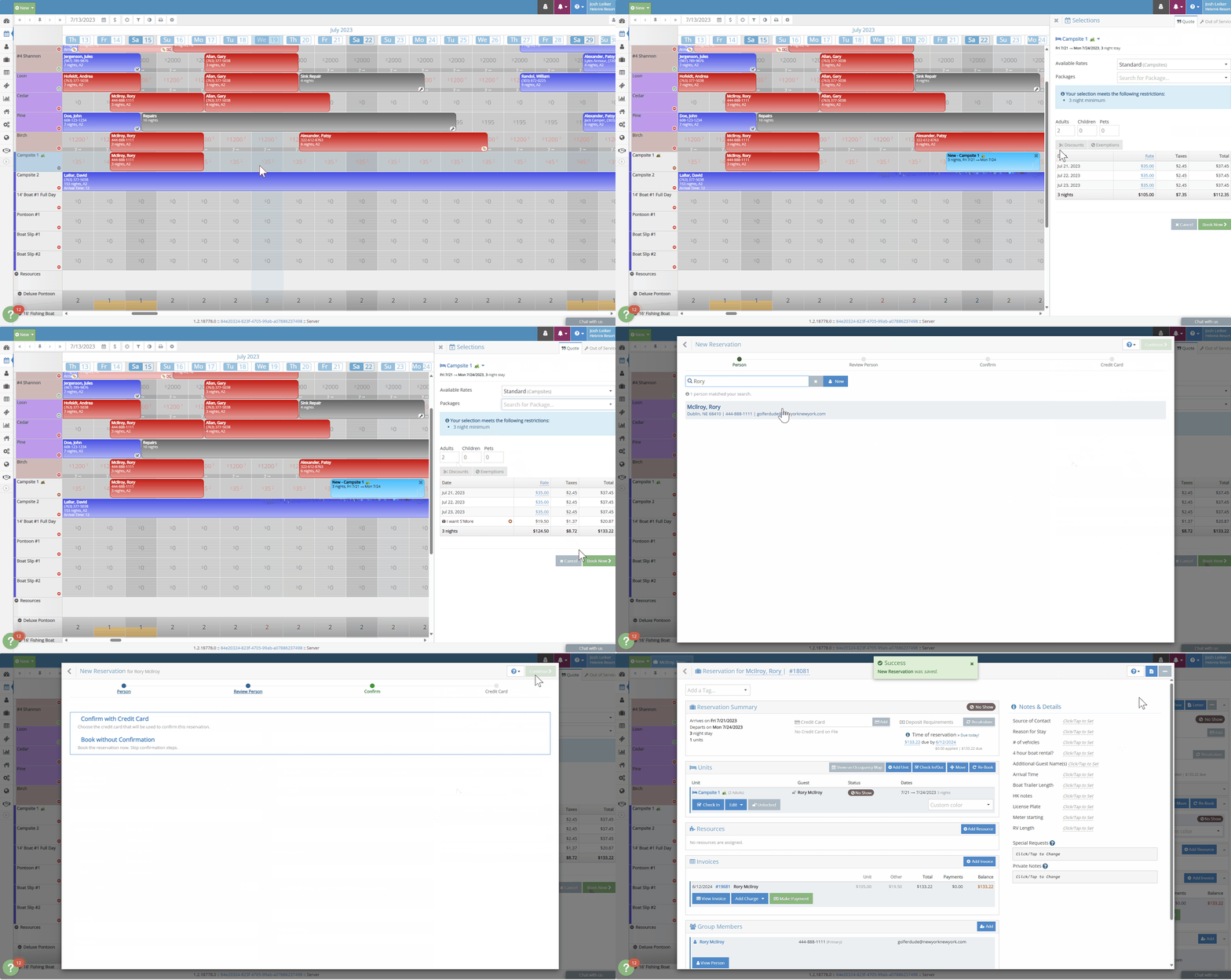
A “Waitlists” feature is your secret weapon for handling situations when a potential guest’s desired accommodations are fully booked. When a popular room type is unavailable, the waitlist feature allows you to track guest contact information and specific accommodation needs. This proactive approach ensures that you don’t lose potential business by contacting guests as soon as their desired room becomes available.
In addition to managing waitlists, don’t forget to offer alternative accommodations to guests first! For instance, if a guest wants a king suite that’s fully booked, suggest a deluxe room or a different type. This not only enhances customer service but also increases the chances of securing a booking.
3. Group Bookings
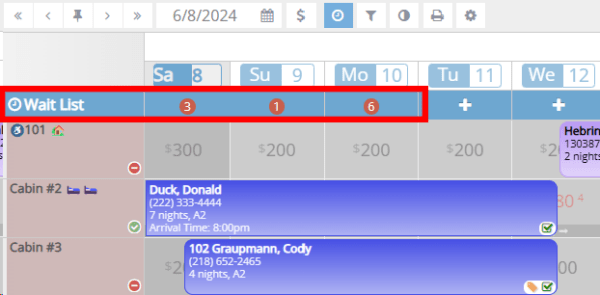
Streamline coordination for large bookings with a comprehensive group booking feature. When setting up a group reservation, you can set a name for the group, add or remove group members with ease, create separate invoices, and assign multiple units to the reservation. This consolidated view ensures better planning and execution, making it easier to manage groups efficiently and effectively.
4. Quick Rate Editor:
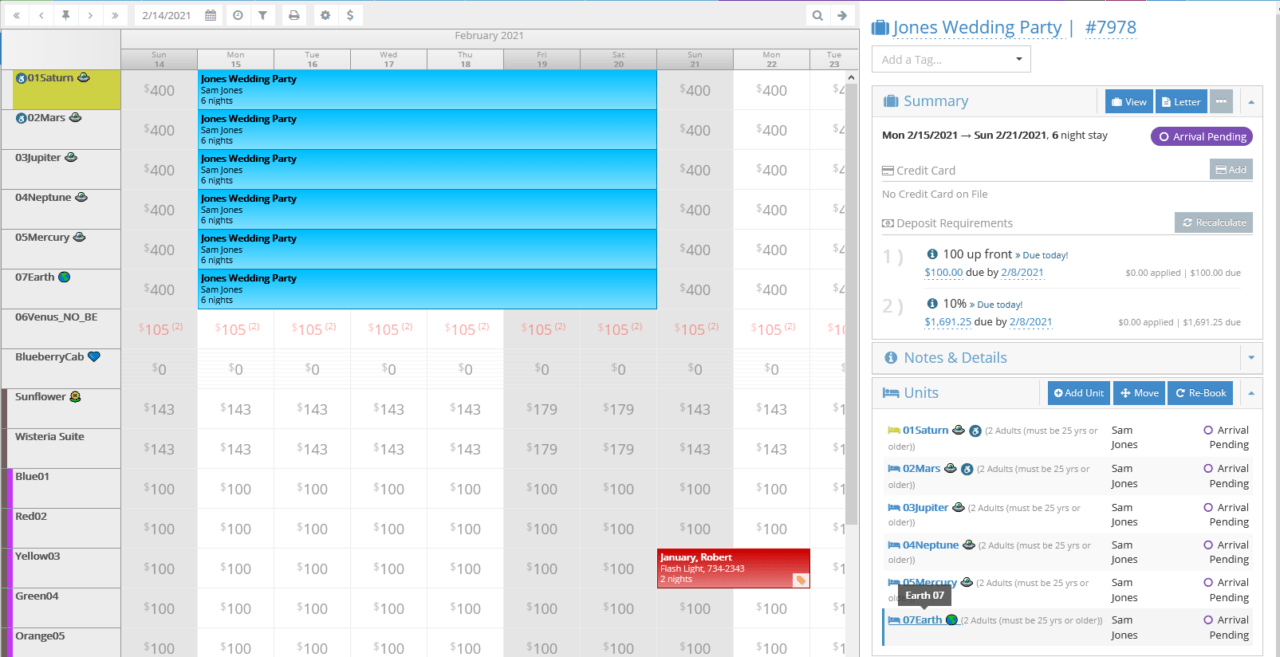
Pricing strategies play a crucial role in revenue management for all independent lodging owners and operators. The “Quick Rate Editor” empowers you to respond swiftly to market changes and make rate changes on the fly. Here’s how it works:
- Real-Time Adjustments: When market dynamics shift—whether due to seasonal trends, local events, or sudden demand spikes—you need to adapt your rates. The quick rate editor allows you to make instant adjustments without navigating complex menus. Lower rates during off-peak periods or capitalize on high-demand days—it’s all at your fingertips.
- Promotional Agility: Running a limited-time promotion? The quick rate editor lets you create special rates or discounts effortlessly. Whether it’s a flash sale, a holiday package, or a last-minute deal, you can implement changes swiftly and effectively.
5. Customizable Views:
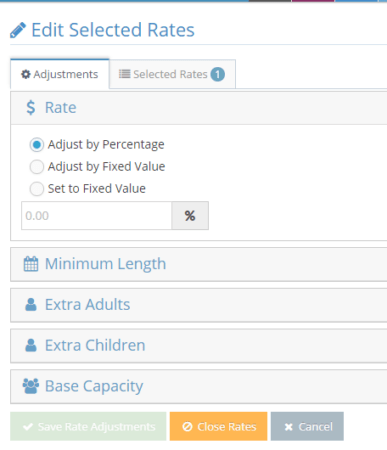
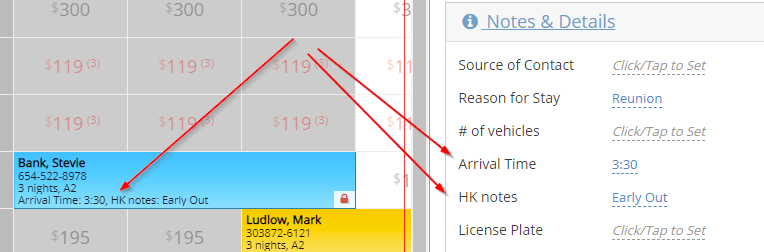
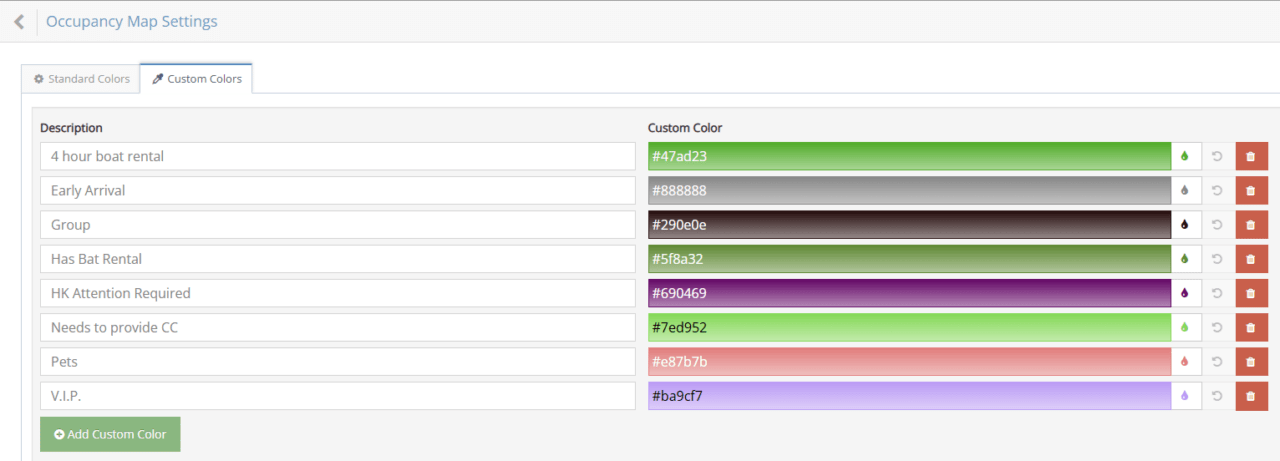
Tailor the tape chart to your preferences and operational requirements. With customized reservation colors you quickly identify booking types at a glance. Display essential information using custom fields directly on the occupancy map, ensuring you have the most relevant details readily available. And to top it off, with customizable views you can create personalized layouts to enhance your property management experience, making your operations more efficient and effective!
6. “Book by” Mode:
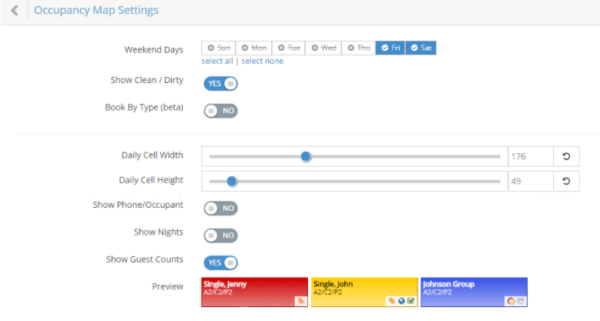
Enhance transparency and clarity during the booking process with different booking modes.
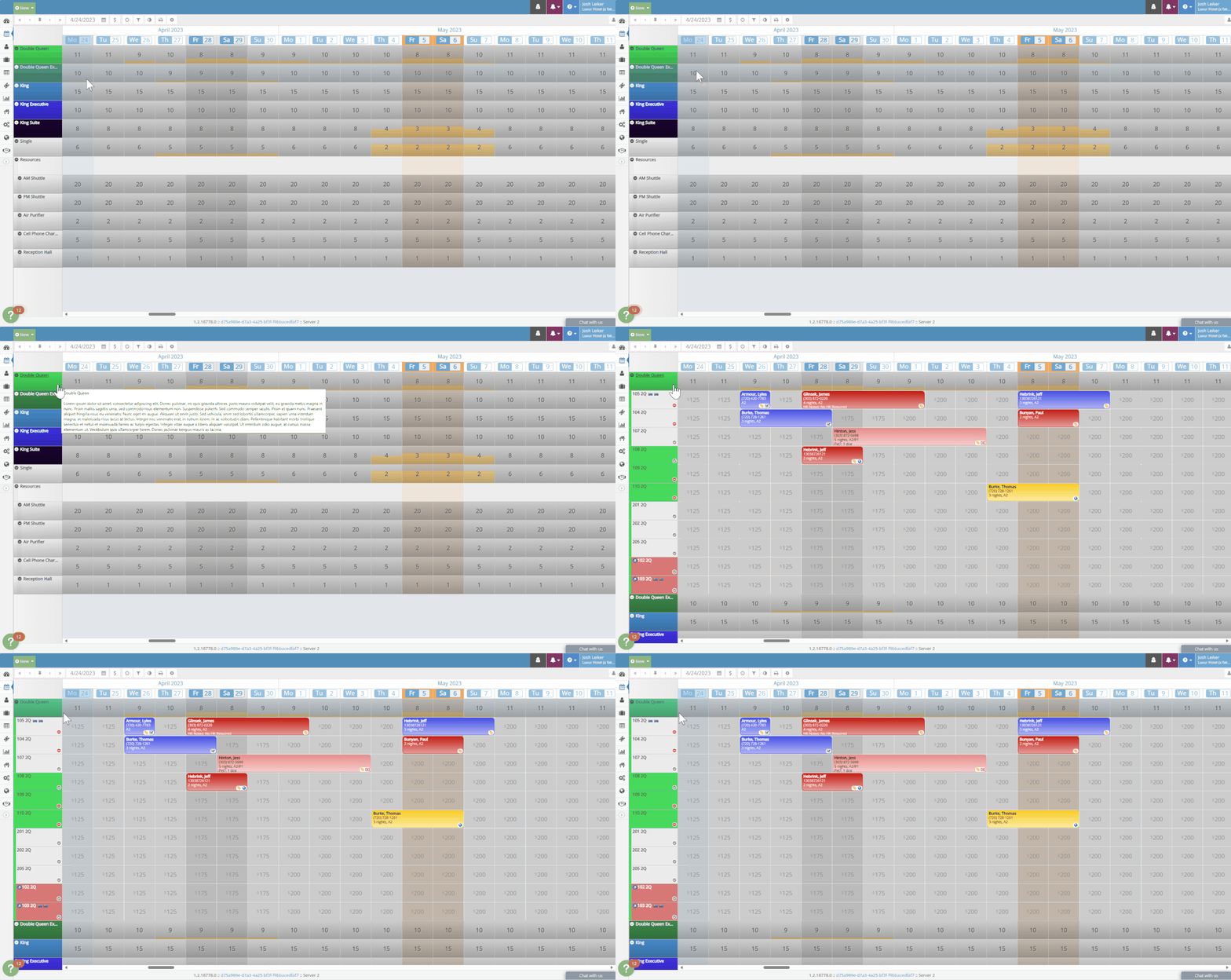
Book by Unit: Perfect for inns and B&Bs with unique rooms and personalized experiences.
Book by Type: Ideal for hotels and motels, allowing guests to choose from multiple similar units like “King Suite.”
7. Clean/Dirty Mode:
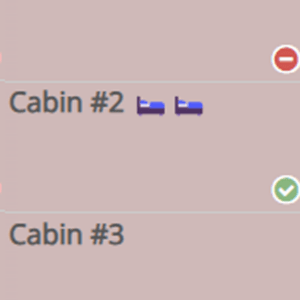
Clean/Dirty Mode on the tape chart clearly indicates the status of each accommodation unit, allowing housekeeping staff to quickly address rooms that need attention.
This feature enhances communication and coordination among staff, ensuring rooms are promptly cleaned and ready for the next guests. With rezStream Cloud, this functionality integrates seamlessly with Comfortly, providing a comprehensive solution for your housekeeping needs.
8. Resources:
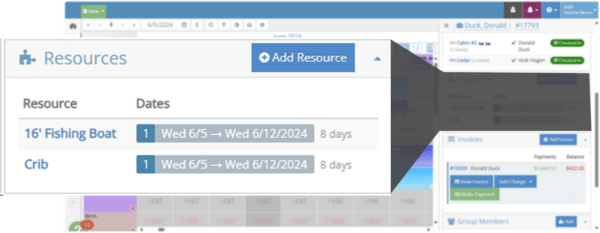
Centralize access to essential resources associated with each accommodation unit, such as cribs, rollaway beds, and other limited inventory items. With the ability to manage resources directly from the occupancy map, staff can quickly respond to guest needs or upsell additional amenities.
Customize resource availability and pricing based on seasonal adjustments to optimize your operations and enhance guest satisfaction.
9. Special Events/Holidays:
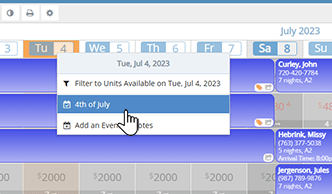
Anticipate fluctuations in demand during peak periods by marking special events and holidays on your occupancy map. This feature allows you to highlight important dates, making it easy for your staff to stay informed and manage reservations accordingly.
Customize events with color coding and detailed descriptions, ensuring clarity and coordination. This proactive approach helps align your pricing strategies to maximize revenue potential during high-demand periods.
10. Day/Night Mode Display:
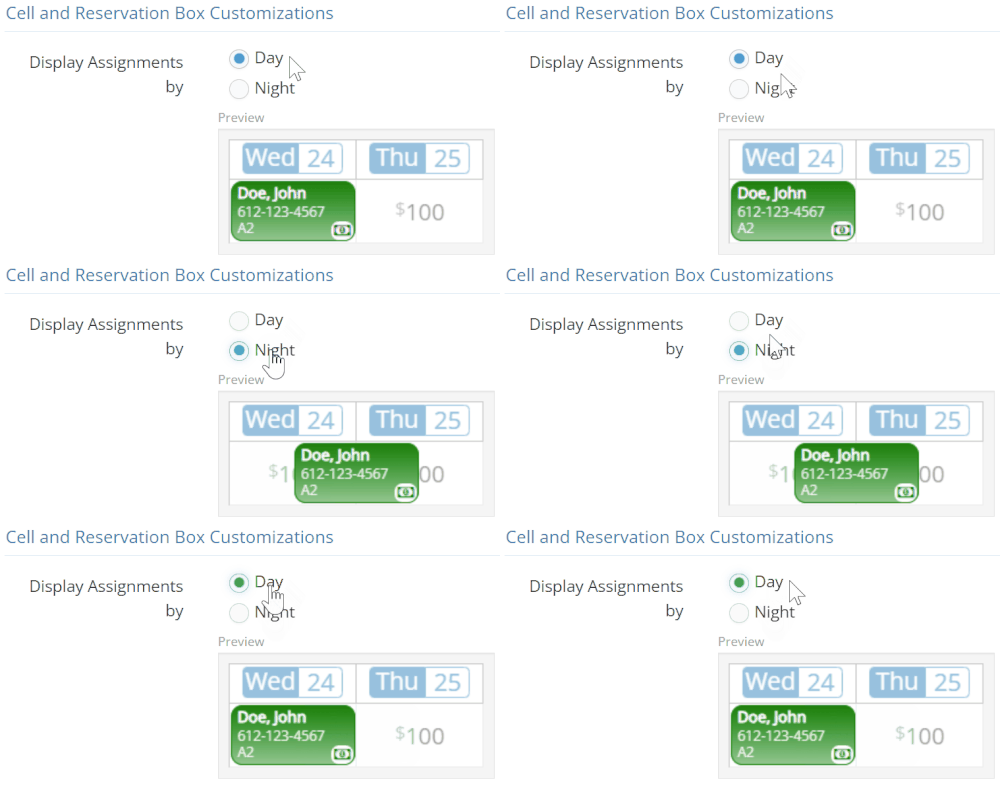
Your property operates around the clock, and your tape chart should reflect that. The “Day/Night Mode Display” allows you to customize how reservations appear based on your property’s scheduling preferences. Here’s how you can use it:
- Clarity in Scheduling: Some properties follow a midnight-to-midnight day cycle, while others prefer noon-to-noon. With the day/night mode display, you can toggle between these options. Independent lodging owners can align the display with their operational hours, ensuring clarity for staff and guests.
- Shift Transitions: If your housekeeping team works night shifts, having reservations displayed in the correct mode ensures seamless transitions. Imagine a guest checking out at 2 AM—the housekeeping staff can immediately see which rooms need attention without confusion.
11. Custom Fields:
Capture specific information relevant to individual guests using custom fields. These fields can be added to the booking engine, allowing you to collect detailed guest information as reservations come in. This proactive approach ensures you have all the necessary details before guests arrive, enhancing personalization and improving service efficiency.
12. Unit Filtering:
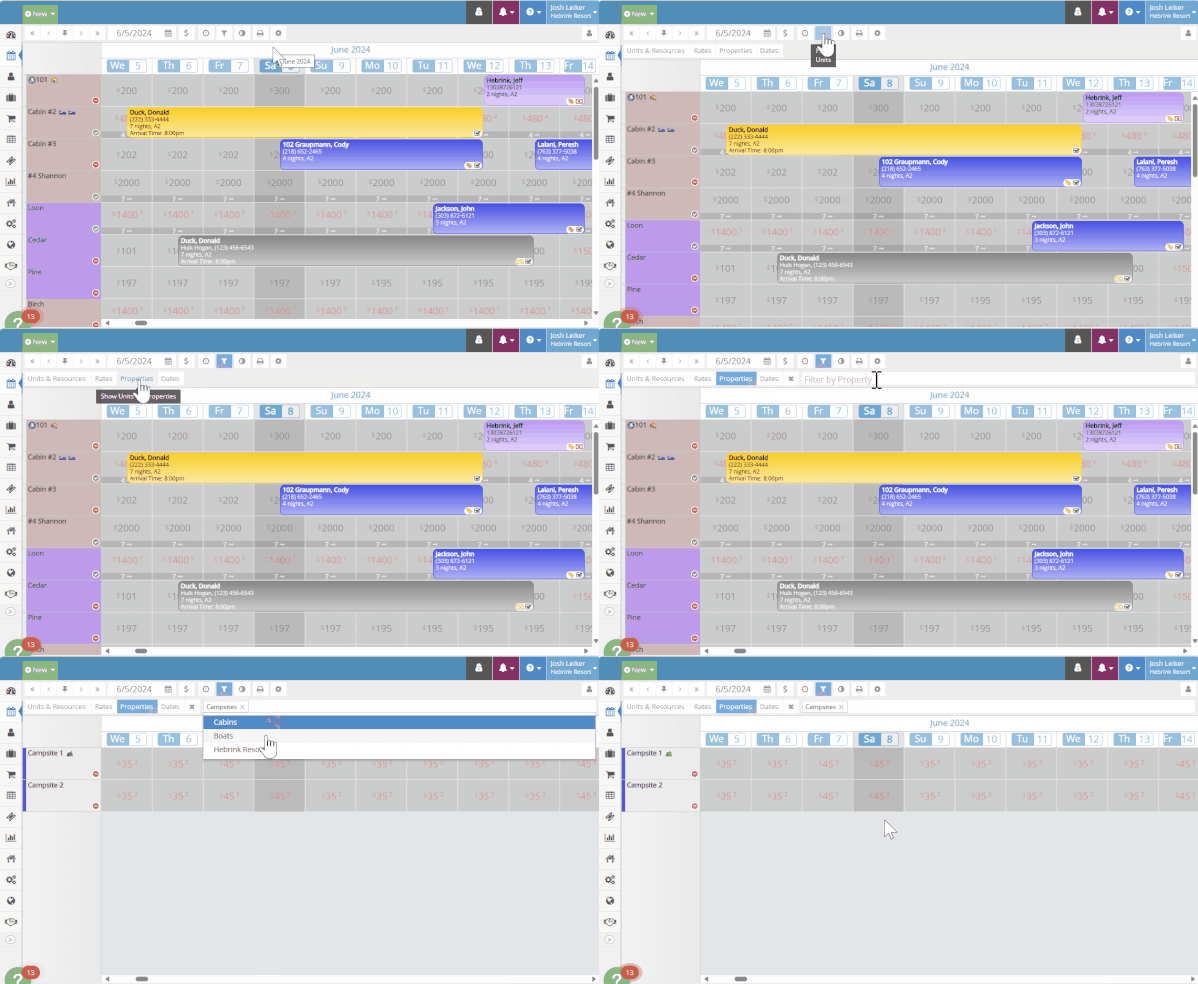
With unit filtering you streamline the booking process, ensuring you meet guest needs efficiently. You can easily navigate and retrieve information by filtering accommodations based on specific criteria.
- Specific Room or Type: Quickly show availability for specific room types or units. For example, if a guest inquires about a campsite, you can filter to display only campsites.
- Multiple Properties: Easily find availability across different locations. If a guest wants to stay at “Property West,” you can filter to show only that property.
13. Reservation Icons
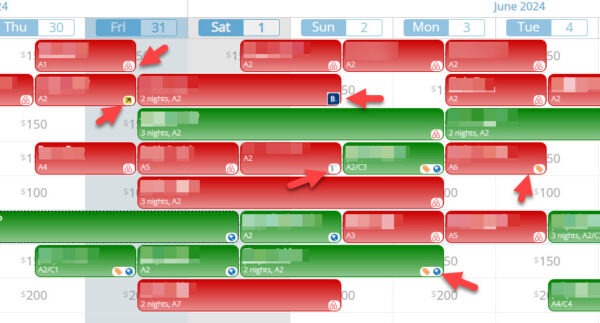
Gain insights into booking sources with reservation icons, which help you understand where your reservations are coming from, such as direct, OTA, or corporate.
Visibility: Easily see the source of each booking.

Booking Engine – Yay, you got a direct booking!

AirBnB – These reservations are a bit higher maintenance, get ready.

Booking.com – Make sure you get their email at check-in!
Actionable Insights: If a booking is from the booking engine, consider adding amenities. For OTA reservations, ensure you’re ready to collect additional guest information.
This feature enhances your ability to tailor services based on booking sources, improving overall guest satisfaction.
14. Custom Color Coding:
Navigating your tape chart efficiently is essential for smooth operations. The “Custom Color Coding” feature adds a layer of visual organization. Here’s how you can use it:
- Reservation Categories: Assign distinct colors to reservation statuses or specific categories to quickly identify patterns and prioritize tasks. For example:
- VIPs: Highlight VIP reservations in gold.
- Pet-Friendly: Use green for pet-friendly bookings.
- Group Reservations: Assign blue to group bookings.
- At-a-Glance Insights: Imagine glancing at your tape chart and instantly recognizing which reservations need attention. Whether it’s a late check-in, a special request, or a high-value guest, the colors guide your focus.
Therefore What…
Remember, your hotel tape chart (A.K.A Occupancy Map) isn’t just a static grid—it’s a dynamic ally in your daily operations. Master these features and watch your property management soar! 🌟
Have any questions or want to explore these features further? Reach out to our team at rezStream. We’re here to help! 🏨✨